
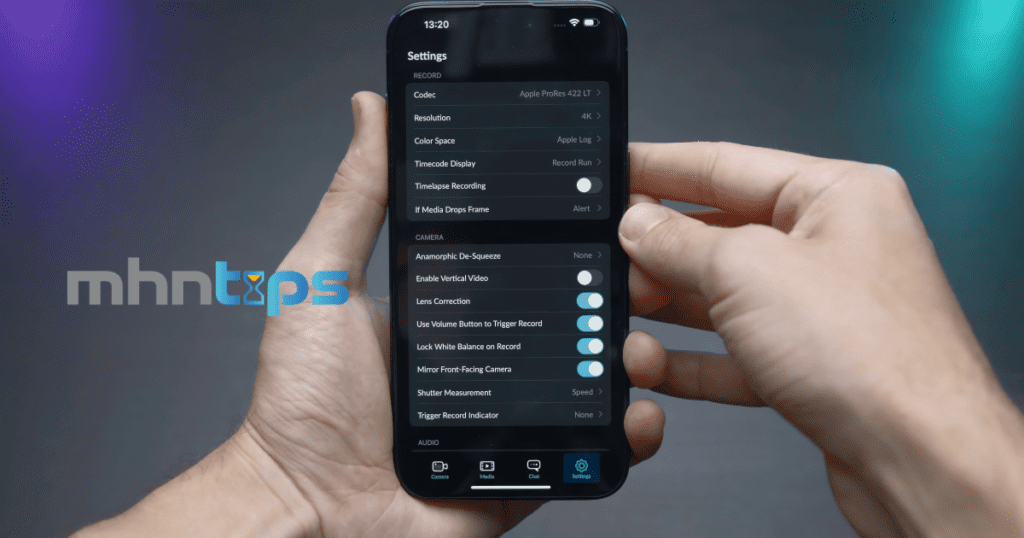
Hidden Android & iPhone Settings You Should Change Right Now for Better Performance
Most smartphones feel fast when they’re new—and then slowly get laggy, hot, and low on storage. Often, the problem isn’t the hardware but the default settings quietly running in the background.
By changing a few hidden Android and iPhone settings, you can:
- Speed up daily performance
- Reduce lag and overheating
- Extend battery life
- Free up storage and data
You don’t need to be “techy” to do this. Follow these steps carefully and you’ll notice the difference almost immediately.
Before You Start: Quick Safety Tips
- Update your OS first (Android / iOS) to the latest stable version supported by your device.
- Restart your phone after big changes to let everything refresh.
- For anything you’re unsure about, take a screenshot of the current setting so you can undo it.
1. Stop Unnecessary Background App Activity
Background activity is one of the biggest reasons phones feel slow and drain battery.
On Android
- Open Settings → Battery (or Battery & performance, Battery & device care on Samsung).
- Look for options like:
- Background usage limits
- Battery optimization
- App battery management
- For apps you rarely use (shopping apps, games, social media, etc.):
- Set them to Restricted, Optimized, or Put to sleep (names vary).
You can also go to:
- Settings → Apps → [Choose app] → Battery
- Choose Restricted or Optimized instead of Unrestricted, unless it’s a critical app (banking, messaging, calling, health).
On iPhone (iOS)
- Go to Settings → General → Background App Refresh.
- Tap Background App Refresh at the top and choose:
- Wi‑Fi or Off (avoid Wi‑Fi & Mobile Data if you want to save battery and data).
- Scroll down and turn off Background App Refresh for apps that don’t need constant updates (games, shopping, non‑critical social apps).
Result: Fewer apps secretly working in the background = smoother performance and better battery.
2. Cut Down on Automatic Downloads and Updates
Auto‑downloads can slow your phone and eat storage without you noticing.
On Android
- Play Store auto‑updates:
- Open Google Play Store.
- Tap your profile icon → Settings → Network preferences → Auto-update apps.
- Choose Over Wi‑Fi only or Don’t auto-update apps (you can update manually).
- Auto‑download media (WhatsApp/other messengers):
- In WhatsApp: Settings → Storage and data → Media auto-download.
- Turn off automatic downloads on mobile data or set to Wi‑Fi only.
On iPhone (iOS)
- Automatic app updates & downloads:
- Go to Settings → App Store.
- Under Automatic Downloads, disable what you don’t want (Apps, App Updates).
- Under Cellular Data, turn off Automatic Downloads if you want to save data.
- Messages media (e.g., iMessage):
Large attachments and photos can fill storage; review old threads and attachments occasionally.
Result: Fewer surprise downloads = less lag, less data use, more control.
3. Reduce Animations and Visual Effects
Pretty animations can make older or budget phones feel slower. Turning them down can make your phone feel snappier.
On iPhone: Reduce Motion & Effects
- Settings → Accessibility → Motion.
- Turn on Reduce Motion.
- Optionally turn on Prefer Cross‑Fade Transitions if available.
You can also reduce transparency:
- Settings → Accessibility → Display & Text Size.
- Enable Reduce Transparency.
These changes lighten the load on the GPU and can slightly help battery too.
On Android: Animation Scales (Advanced)
For a noticeable speed‑up effect:
- Enable Developer Options (if not already enabled):
- Go to Settings → About phone.
- Tap Build number 7 times until you see “You are now a developer” (on some devices: Software information → tap Build number).
- Now go to Settings → System → Developer options (path may vary).
- Find:
- Window animation scale
- Transition animation scale
- Animator duration scale
- Change each from 1x to 0.5x, or turn Off to eliminate animations.
Warning: Don’t change other Developer Options if you don’t know what they do.
Result: Menus open faster, transitions feel instant, and your phone appears much quicker.
4. Free Up Storage (Without Losing Important Stuff)
Low storage can make both Android and iPhone significantly slower.
On Android
- Settings → Storage (or Battery & device care → Storage on Samsung).
- Use built‑in Clean up, Free up space, or Smart Storage options.
- Manually:
- Delete large files you no longer need (videos, downloads).
- Clear cache for problem apps:
- Settings → Apps → [app] → Storage → Clear cache (avoid “Clear data” unless you know what you’re doing).
- Move media to cloud storage or a microSD card (if supported).
Google’s guide on managing storage:
https://support.google.com/android/answer/7431795
On iPhone (iOS)
- Settings → General → iPhone Storage.
- Review Apple’s recommendations at the top (e.g., Offload Unused Apps, Review Large Attachments).
- Scroll down and:
- Tap apps to see how much space app data and documents are using.
- Use Offload App to remove the app but keep its data.
- Delete large, unused apps or old games.
Apple’s storage management guide:
https://support.apple.com/en-us/HT201656
Result: More free space = smoother updates, less freezing, faster app launches.
5. Tame Location Services and System Tracking
Constant GPS and tracking can drain battery and slow things down.
On Android
- Settings → Location → App location permissions (or similar).
- For most apps, set to:
- Allow only while using the app
- Ask every time
- Deny for apps that don’t need location.
- Turn off Wi‑Fi and Bluetooth scanning if you don’t rely on location accuracy:
- Settings → Location → Location services (or Scanning) and disable unnecessary scanning options.
On iPhone (iOS)
- Settings → Privacy & Security → Location Services.
- Tap apps one by one and choose:
- While Using the App (recommended for most)
- Never for apps that don’t need location
- Turn off Precise Location unless necessary (maps, ride‑hailing can keep it; weather apps often don’t need it that precise).
- Scroll down to System Services and turn off nonessential items (e.g., Location‑Based Apple Ads, some analytics, etc.).
Result: Better battery, less background work, and improved privacy.
6. Turn Off Unused Wireless Features
If you’re not using certain features, don’t let them run all day.
On both Android and iPhone, consider:
- Turn Bluetooth off when not in use (unless you always use a smartwatch or wireless earbuds).
- Disable Wi‑Fi when you know you’ll only use mobile data for a long period, and vice versa.
- Turn off Mobile Hotspot when you’re done sharing.
- On 5G‑capable phones, switching to LTE/4G can save battery if 5G is weak in your area (path depends on carrier/region).
7. Clean Up Notifications and Focus Settings
Too many notifications wake your screen, use battery, and distract you.
On Android
- Settings → Notifications (or Apps & notifications → Notifications).
- Turn off nonessential notifications (shopping apps, games, promotions).
- Use Do Not Disturb or Focus mode to pause alerts during work or sleep.
On iPhone (iOS)
- Settings → Notifications.
- Go app by app and disable what you don’t need, especially Promotional or Marketing alerts.
- Use Focus (Settings → Focus) to limit notifications during work, sleep, or driving.
Less notification load helps both performance and your mental focus. For more daily focus tips, see:
15 Simple Daily Habits That Can Transform Your Productivity in 30 Days.
8. Use Built‑In Battery and Performance Modes
Most modern phones include smart modes to optimize performance and battery.
On Android
Options vary by brand, but look for:
- Settings → Battery → Battery saver or Power saving mode
- Settings → Battery & performance → Performance mode or Balanced mode
Use:
- Battery Saver / Power Saving when your phone is low or you’re away from a charger.
- Balanced instead of High performance on older phones to avoid overheating and throttling.
Brand‑specific guides (e.g., Samsung’s device care) are often on their support sites.
On iPhone (iOS)
- Settings → Battery → turn on Low Power Mode when battery is low.
- Turn on Optimized Battery Charging to slow battery aging:
- Settings → Battery → Battery Health & Charging → enable Optimized Battery Charging.
Apple’s battery optimization overview:
https://support.apple.com/en-us/HT208387
Result: Smarter power use = more consistent performance throughout the day.
9. When Settings Aren’t Enough
If you’ve optimized all these hidden Android and iPhone settings and your phone is still slow:
- Check for very old devices (5+ years) that may simply struggle with modern apps.
- Consider doing a full backup and factory reset (only if you’re comfortable and know how to restore everything).
- Check for battery health issues, especially on iPhone (Settings → Battery → Battery Health & Charging).
Sometimes, a basic device is just overloaded with heavy apps. You may need to:
- Uninstall graphics‑intensive games you rarely play.
- Use lighter versions of apps (Facebook Lite, Messenger Lite, etc., on Android where available).
Quick Checklist: Settings to Change Today
Android & iPhone:
- Limit background app activity
- Restrict auto‑downloads and media downloads
- Reduce animations/effects (Motion/Developer options)
- Free up storage space (remove unused apps and large files)
- Tame location and tracking settings
- Turn off unused Bluetooth/Wi‑Fi/Hotspot
- Clean up notifications and use Focus/Do Not Disturb
- Enable smart battery/performance modes
Do 2–3 changes today, use your phone for a full day, then fine‑tune based on how it feels.
- Android official help – Fix a slow Android device:
https://support.google.com/android/answer/9079646 - Google – Free up space on your device:
https://support.google.com/android/answer/7431795 - Apple – If your iPhone or iPad is running slow:
https://support.apple.com/en-us/HT201559 - Apple – About iOS performance and battery:
https://support.apple.com/en-us/HT208387
- Daily routines and digital focus (helps reduce distraction from your phone):
15 Simple Daily Habits That Can Transform Your Productivity in 30 Days - Healthy morning routine that includes intentional phone use:
Healthy Morning Routine: Small Changes That Improve Your Body and Mind

Those are some useful tips. Thanks for sharing!